Krita's new text tool is a game-changer
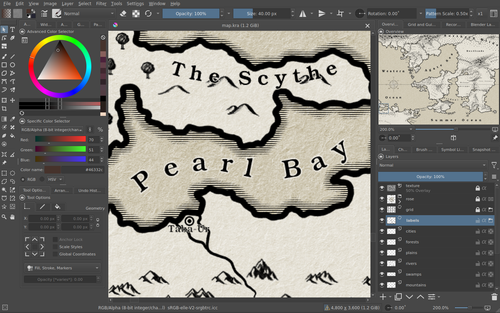
Until recently, my biggest gripe with the otherwise excellent Krita1 editor was its rudimentary text tool. When designing maps or anything else that requires complex formatting, my go-to solution was to have a separate Inkscape2 file with a text layer over the linked, unlabeled map, and then have a link to the label layer file in the Krita file.
 |
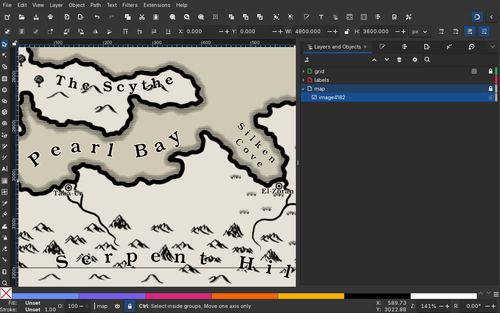 |
| Krita file with labels in linked file layer | Inkscape file with map in linked file layer |
With the new text tool, however, this (and much more) can easily be done directly in Krita. So, let's try to recreate the same complex text path in Krita 5.3.1.
First, let's create a new vector layer (Layer → New → Add Vector Layer), and lower the opacity of the old layer to use it as a reference. Then, draw a path using the Bezier Curve Tool and adjust it with the Edit Shapes Tool.
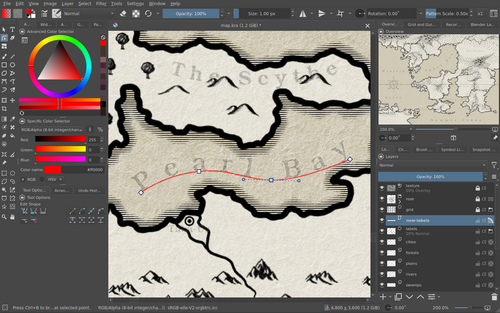
In the same vector layer, create a text object using the Text Tool. In the Tool Options docker, click the Open Text Properties button.
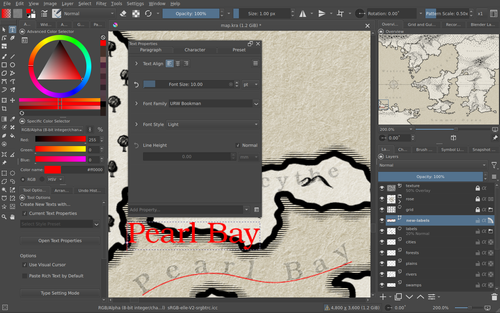
To access all properties, click on the icon in the lower right corner and set the Always Show option to the ones you need. After clicking the OK button, you will immediately see the selected options in the Text Properties window.
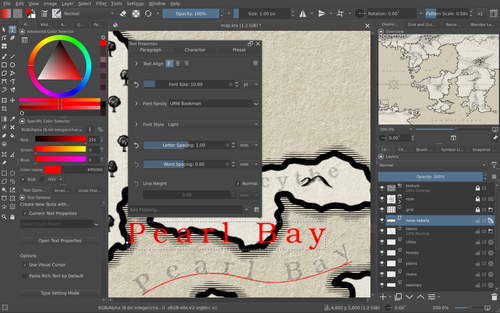
Lower the text object to the bottom (Ctrl+Shift+[) and then, with the Select Shapes Tool, choose both objects (by clicking them while holding the Shift key) and choose the Text → Put Text on Path option in the context (RMB) menu. After this, you can adjust the curve and the text until the result is satisfactory.
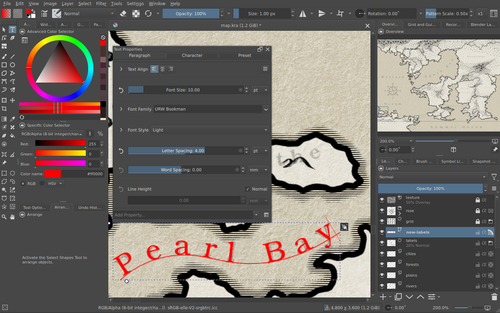
To hide the curve, you can set the No fill option in the stroke options tab of the Tool Options docker.
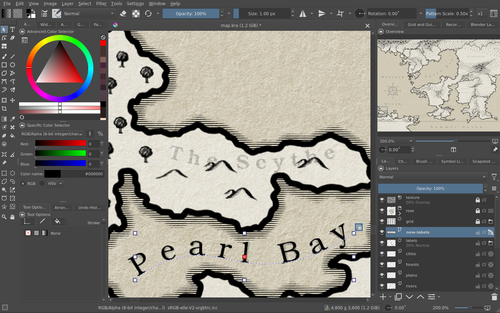
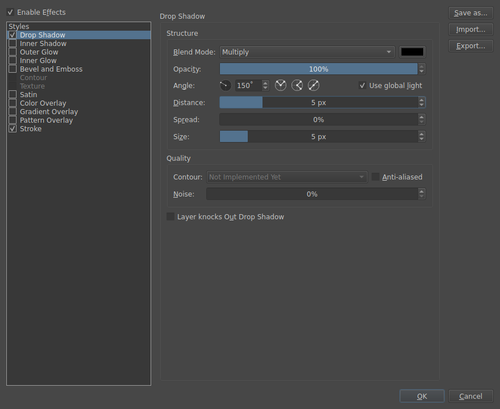
To make an outline effect, open the Layer Styles window (Layer → Layer Style…), enable the Stroke effect, and configure its options.
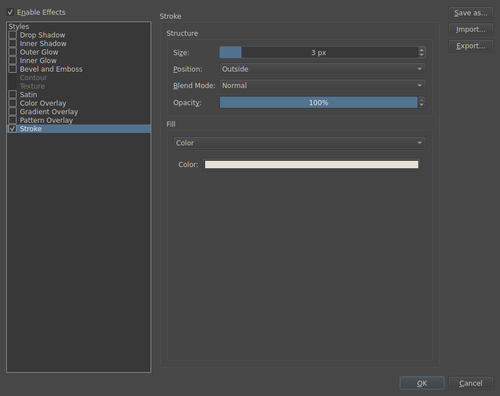
You can also combine different effects.
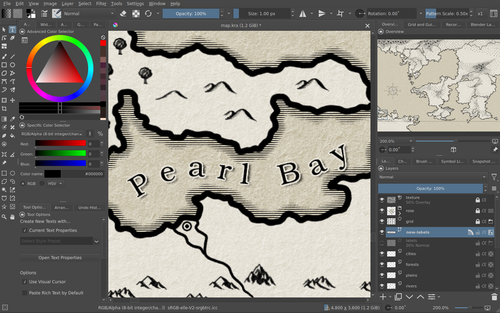
And here's the final result with the old labels disabled.
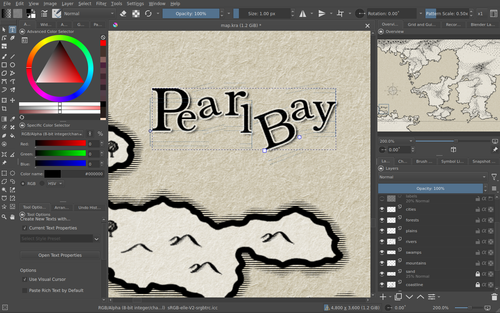
That barely scratches the surface of the possibilities of the new text tool. For example, you can manipulate each letter individually by enabling the Type Setting Mode.
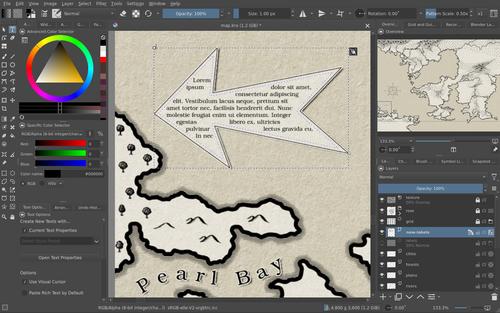
Another cool option is fitting the text inside vector shapes, such as text balloons.
📝 NOTE: For complete reference, consult the official documentation.
Discuss this post on Reddit